Barely Drawn: How an App Draws Your Photo Badly on Purpose
Barely Drawn is an app that redraws your photo, just not very well. You pick one photo and one drawing style, watch a short ad, and get back a picture that is clearly you but somehow off. The Korean name is 그려는드림, roughly “well, I did draw it”, and the English tagline is “We draw. ‘Well’ is extra.” It is on the App Store and Google Play.
This note covers how the drawings are made, how a style stays bad in the same funny way, the rules behind the voice, where your photo goes, and what the first store releases taught me.
It started as a text box
The first version, on August 5, was a mini-app inside Toss, a Korean finance app that hosts small web apps. It was called 못그려드림, closer to “can’t draw it for you”, and it had no AI in it at all. You typed a short sentence, and a deadpan “bad-drawing clerk” answered with a doodle and a cheeky one-liner. At first the doodle was always the same cat; later the same day it was picked at random from a hand-drawn set.
A day later the product document was rewritten around a different idea: not a drawing of a sentence, but a drawing of your photo that looks oddly like the original and is still clumsy. The text box was removed, and “no text prompt input” became a written rule. That evening the first real drawings came back from an image model. Two days later there was a style picker, and by August 9 there were seven styles. On August 11 the name changed to 그려는드림, from “can’t draw it” to “I drew it, at least”, which is a better description of what the app does.
From there it became native iOS and Android apps. They share no runtime code, only the product rules: translated strings, the API contract, the analytics events and store assets. The product document lists what the app competes on, and quality is not on the list:
- The time from choosing a photo to seeing the result is short.
- The original is recognizable, but something about the result is clumsy.
- The app never apologizes for the result. It just hands it over.
- The result is the kind of thing you want to send to a friend.
- You never have to learn how to write a prompt.
What happens when you tap the button
The main button says “Watch an ad, get a wonky drawing”, so the ad is named before you tap. Everything after that is a short pipeline.
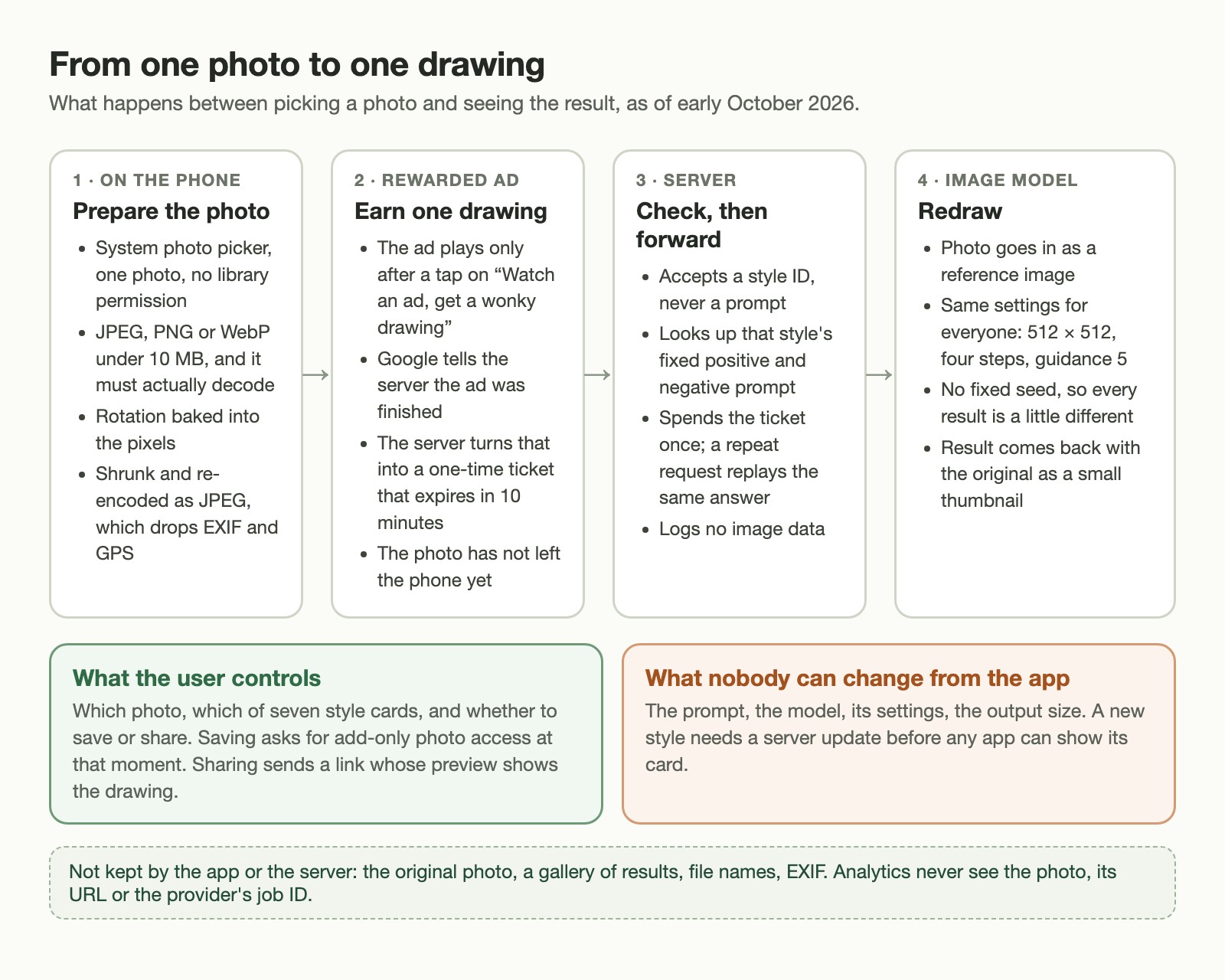
On the phone. The photo comes from the system picker, so the app never asks for your whole library, and it must really decode, not just carry the right file extension. The stored rotation is applied to the pixels, and the image is shrunk to 1024 pixels on its long edge and re-encoded as a JPEG. Re-encoding is also how the metadata goes: the EXIF block, including any GPS position, is simply not carried over.
The ad. A rewarded ad is one you choose to watch in exchange for something, and the trap is that a phone can claim a reward it never earned. So the app’s own “reward” callback only moves the screen along. The real decision is made by the server: Google calls it directly when an ad is finished (this is called server-side verification), and the server turns that into a one-time ticket that expires after ten minutes. If the ad has no fill, fails to load or is closed early, no drawing starts. I wrote about a related ordering problem in a note on rewarded ads in a WebView.
The server. A small Cloudflare Worker sits between the apps and the image service and is the only place that holds the service’s key. The app sends the photo, a style ID such as wobbly, and the ticket, never a prompt. The server looks up that style’s fixed prompt pair, spends the ticket once, and replays the first answer if the same request arrives twice. Its records hold only what the ticket needs: an ID, the style, a status and a few timestamps. No images, no file names.
The model. The photo goes to a hosted image model as a reference image, together with a positive prompt (what to make) and a negative prompt (what to avoid). Every request uses the same settings: a 512 × 512 output, only four sampling steps, and a guidance scale of 5, which is how strongly the prompt steers the picture. There is no fixed random seed, so the same photo and style give a slightly different drawing each time. The app says so in its guide: “Every result comes out a little different.”
Writing a bad drawing
A style is not a filter. It is a pair of long prompts on the server, and getting a model to draw badly turned out to be harder than getting it to draw well.
The obvious instruction, “draw it like a child”, doesn’t work. To an image model, “childlike style” means something cute and competent: a designer imitating a kid. So the default style, Wonderfully Wonky, describes an actual failure instead. The prompt asks for a “genuinely poor drawing” by an ordinary young child using a computer mouse for the first time, and then lists the mistakes: wrong sizes, paired parts that don’t match, lines that stop early or overshoot, colors that spill outside the outlines, small details forgotten. It keeps only enough of the photo to be recognized: the main subject, the rough pose and colors, and “two or three distinctive features”.
The negative prompt protects the joke. It lists the polished versions the model would otherwise produce: “intentional childlike style”, “cute kindergarten illustration”, “charming doodle”, “cute mascot”, “symmetry”, “correct proportions”. The Marker Mayhem style goes one step further and bans “adult imitating a child” and “designed doodle” outright.
None of this came out right the first time. The first version, on August 6, imagined a child of four to five and asked for a plain white background. The next day the background changed to “a rough, badly simplified version” of the photo’s own background, the guidance scale went from 3.5 to 5, and I switched to a different version of the same model. On August 8 the imaginary artist got a year younger, three to four, because a younger child’s drawing is less controlled.
When the other styles arrived, it became clear that every style prompt really sets two separate dials.
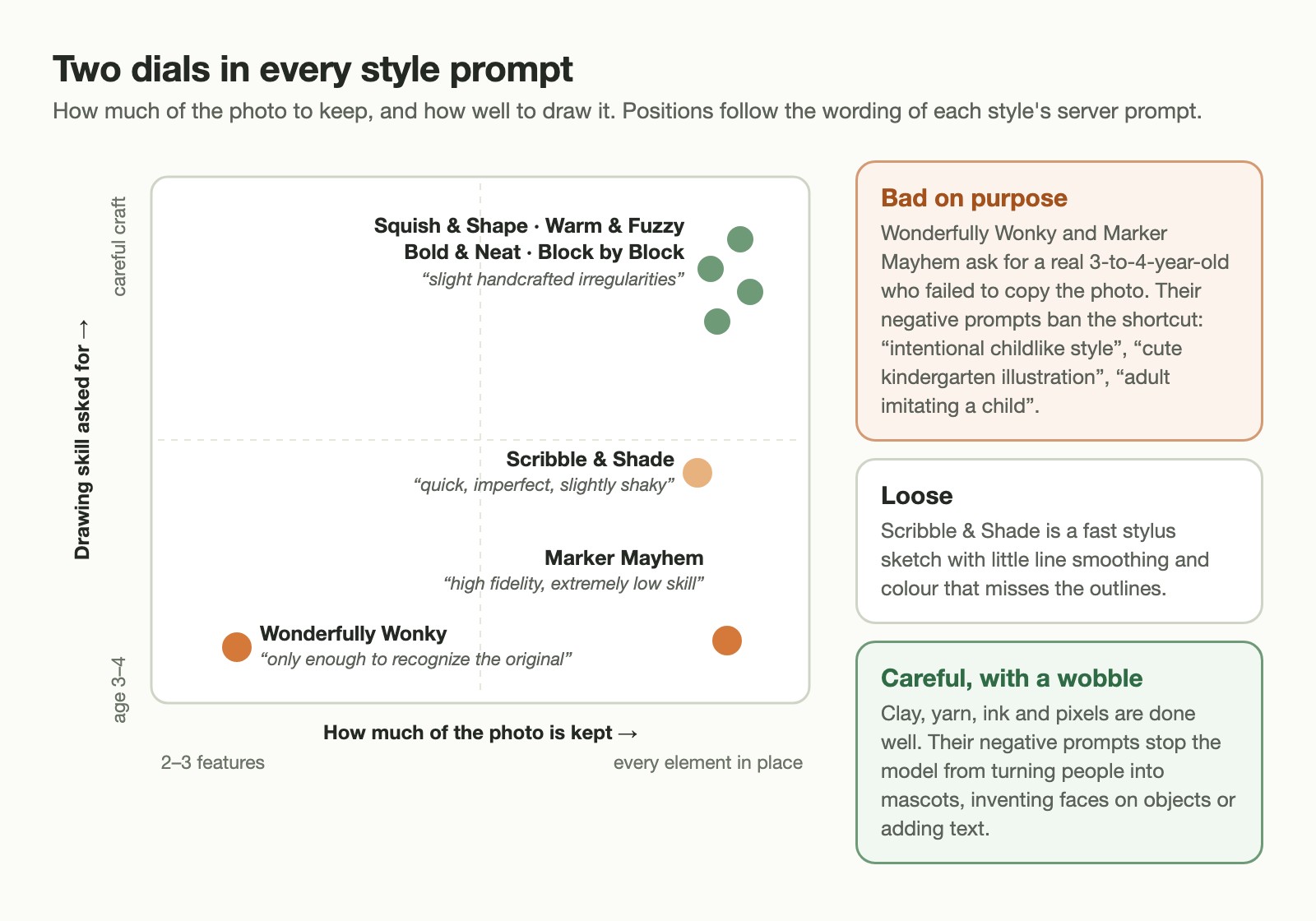
The first dial is how much of the photo to keep. Wonderfully Wonky keeps almost nothing. Every other style is a strict style transfer: the prompt opens by locking the content, from the number of people and objects to the pose, the crop and the background, and says only the rendering may change.
The second dial is how well to draw. Marker Mayhem combines a locked composition with a child’s fist around a dried-out black felt-tip, and its prompt ends with a sentence that sums up the whole app: “high content and composition fidelity but extremely low drawing skill”. Scribble & Shade is a quick stylus sketch with shaky lines and colour that misses the edges. The remaining four, clay, yarn, ink and pixels, are done carefully, with only “slight handcrafted irregularities”. Their negative prompts are about a different risk: the model’s habit of turning people into chibi mascots, inventing faces on objects, adding text or a border, or putting the subject on a display stand like a figurine.
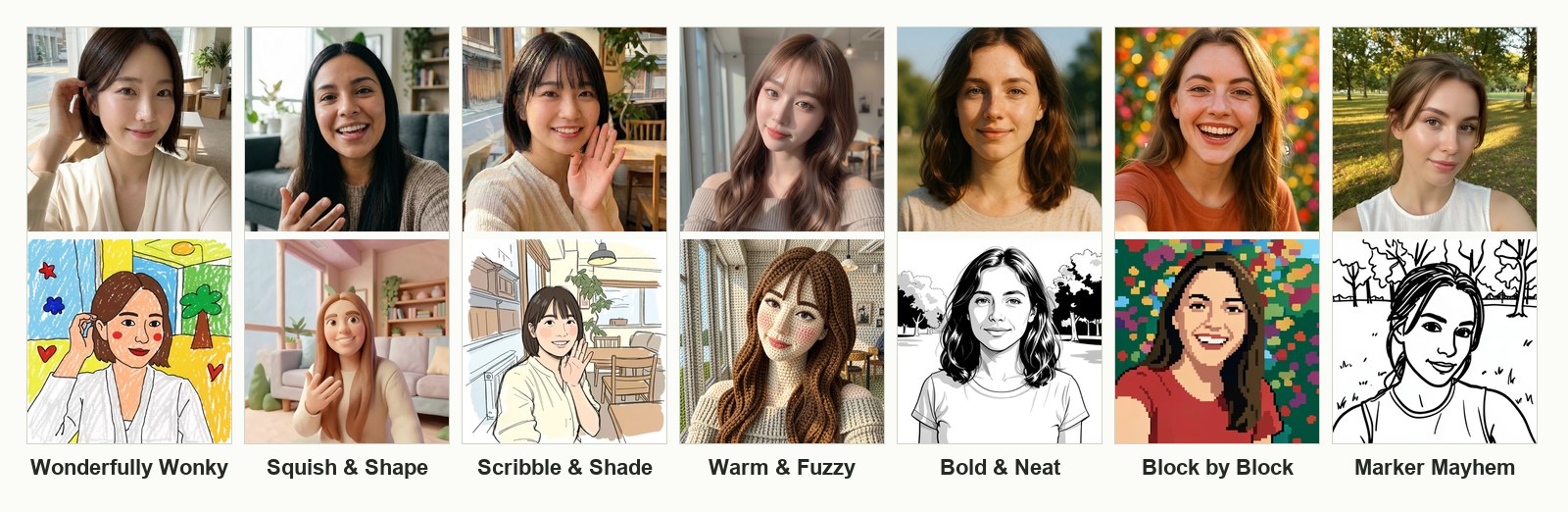
Even so, wording moves the result without fixing it. The Marker Mayhem sample above is far tidier than anything a real three-year-old would make. The model leans toward competence, and the prompt only pulls it part of the way back. That is why the app’s personality doesn’t rest on the drawing alone.
Seven cards instead of a prompt box
Because there is no text box, the style cards do the work a prompt would do. Their names describe the result, not the technique. The Korean names are doubled sounds, such as 삐뚤빼뚤 (wobbly-wobbly) and 조물조물 (squish-squish), and the English names rebuild that rhythm with pairs such as Squish & Shape. Every language recreates the sound play with its own words, alliteration or verb pairs, and never transliterates the Korean.
Behind each card is only a stable ID, shared by the server, the analytics events and the translation files. That makes release order matter: if an app shows a new card before the server knows its ID, the server refuses the request. So a new style always goes to the server first and to the apps second.
How a result gets checked
There is no automatic judge of whether a drawing is funny. The checks are split between what a test can prove and what only a person can see.
The automated tests cover the request: each style ID maps to its own prompt, the model settings are fixed, an unknown style is refused, a repeated request doesn’t cost a second drawing, and no image data reaches the logs. On the apps, a contract test checks that every style has its preview image, because a missing file on iOS shows up as a silent blank card. The tests use a fake image service, so they say nothing about the picture itself.
The picture is judged by eye. Two rules keep that honest. The model and the service are never changed without comparing real results on the sample photos first. And prompts are never rewritten while code is being moved. The server code is moving into the main repository this week, and the prompts move as they are, checked against the deployed version rather than improved along the way.
The result screen adds the deadpan part. Under the title “Ta-da. We drew it.” the app shows one of ten pre-written comments, such as “There’s a resemblance. Somewhere.” or “Let’s call it an interpretation.”, never the same one twice in a row, next to one of seven small reaction doodles. The comment is never generated from your photo. Nothing analyzes your face to decide what to say.
A voice with written rules
An app whose whole personality is “confidently bad at drawing” can go wrong quickly, so the voice is written down and enforced by the tools that generate the app’s strings. The core rules are short. Write like a friend who is completely unbothered. Joke only about the app and its drawing skills. Never comment on the person in the photo: not their looks, age, gender, ethnicity, ability or disability. No sarcasm, no slurs, no stereotypes, no memes that will be stale in a month. When a joke is aimed at the app, it is a brand. When it is aimed at the face in the photo, it is an insult, so that line is fixed.
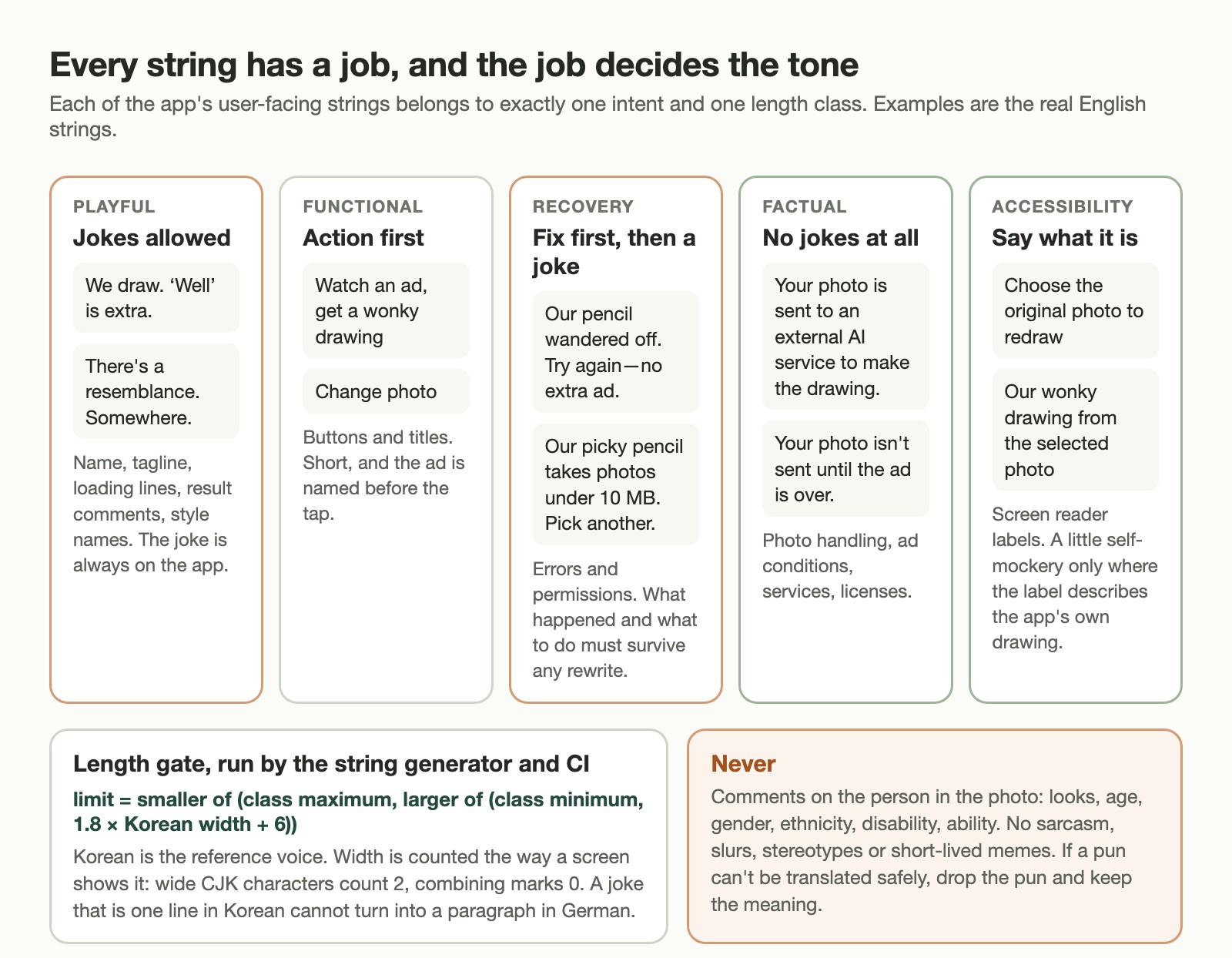
Every user-facing string belongs to exactly one of five intents, shown above. The important pair is recovery and factual. An error must say what happened and what to do before it jokes: “Our pencil wandered off. Try again—no extra ad.” Text about photo handling, ad conditions and licenses carries no jokes at all.
The app ships in 50 languages, and translation is where short jokes die: a one-line Korean quip becomes a two-line explanation. So each string also has a length class, and the generator checks every language against the Korean line: the limit is 1.8 times the Korean display width plus six, clamped to the class’s minimum and maximum. Width is counted the way a screen shows it, with wide East Asian characters counting double. Each language also carries a fingerprint of all its strings, so changing one word fails the build until that language is reviewed again. Korean is the native-reviewed reference. The other 49 languages were rewritten rather than translated, and stay marked as machine-reviewed until a native speaker checks them.
The handwriting is part of the voice too. Jokes and headings use slightly uneven handwritten fonts chosen per language; privacy text and accessibility labels use the system font. In Korean these are SchoolSafe Little One by KERIS, and Poor Story and Gamja Flower by YoonDesign. In English and most Latin-script languages they are Fuzzy Bubbles, Grandstander and Shantell Sans. All of them are under the SIL Open Font License 1.1, and the apps bundle only the characters they actually use.
Where your photo goes
The privacy rules follow one principle from the architecture document: the photo passes through the pipeline, but it never becomes content the app keeps.
- The original isn’t saved to a database or a gallery, and starting over releases it from memory.
- The photo is sent only after the ad is confirmed, first to the server and then to the external image service.
- Sharing sends a short line and a link whose preview shows the drawing; the image file itself isn’t attached.
- Analytics never include the photo, its file name, any image URL, EXIF data, face features, the image service’s job ID or exact timings. Speed is recorded only in coarse buckets.
- Notifications are asked for only after your first drawing, and are limited to new styles and important updates.
The wording is careful too. The guide says: “Your photo is sent to an external AI service to make the drawing. The app doesn’t separately store your photo or result.” It links to the service’s own privacy information. The rule is to make no absolute claims such as “your photo is never stored” or “never used for training” until the service’s own storage and training policy has been checked. The app can promise what the app does. It shouldn’t promise what someone else’s server does.
A consent lesson worth passing on
An app with ads has to handle two separate questions. In the European Economic Area, the UK and Switzerland, Google’s consent tool asks whether ads may use your data. On iOS, Apple’s App Tracking Transparency prompt (ATT) asks whether the app may track you across other apps. The order matters, and I got one detail wrong.
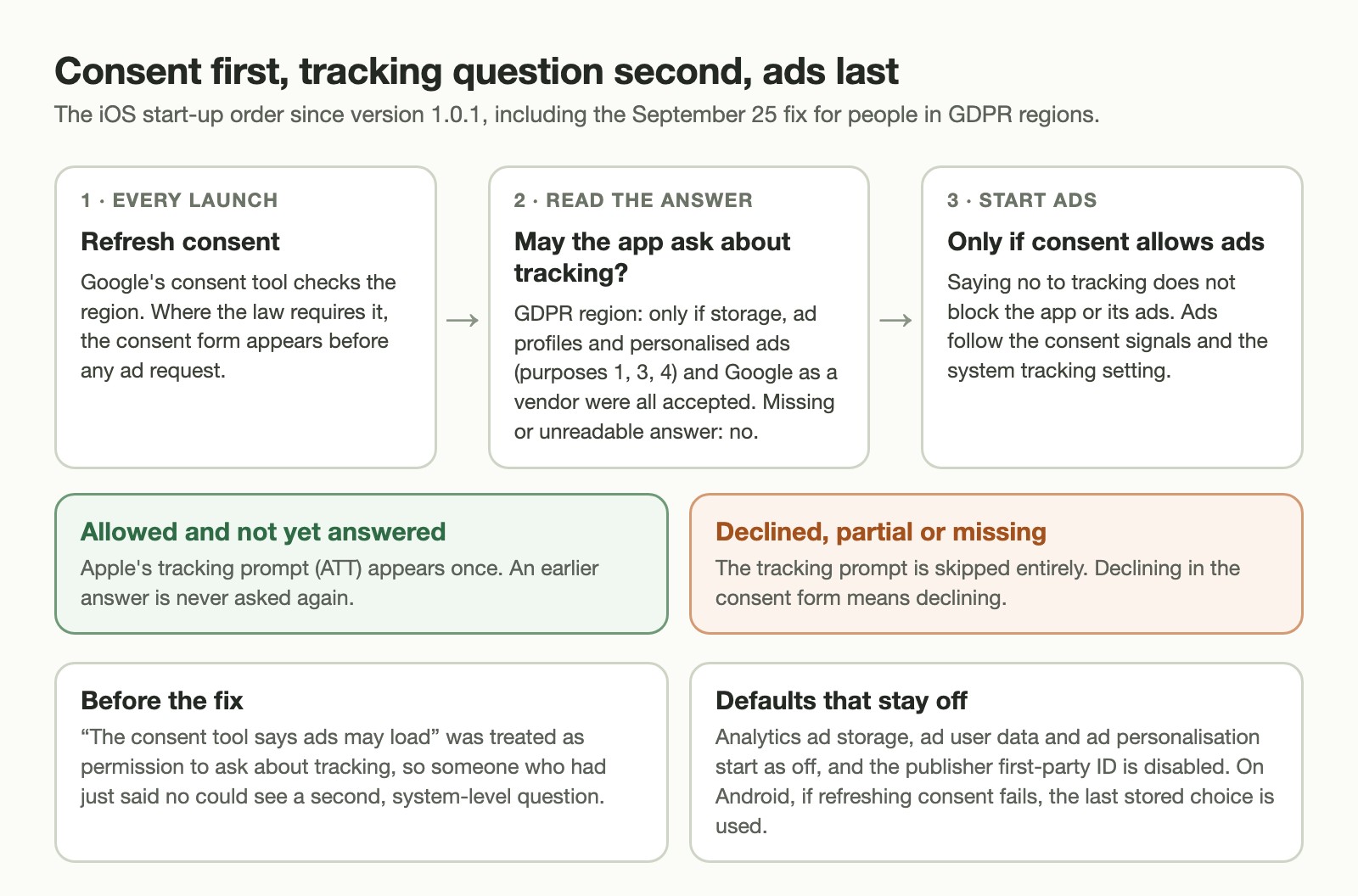
The fix in the iOS 1.0.1 update was about that order. If someone declines in the consent form, the app should not follow up with the system prompt asking for tracking permission. Declining should mean declining. The earlier code treated “the consent tool says ads may load” as permission to ask about tracking, which isn’t the same thing. Now, in a GDPR region, the app asks only if the three relevant purposes (storing information on the device, building an ad profile and showing personalised ads) and Google as a vendor were all accepted. A missing or partial answer skips the prompt, and declining tracking never blocks the app or its ads.
A few defaults stay off from the start, and on Android, if refreshing the consent state fails, the app uses the last stored choice instead of guessing. It’s a small set of rules, and it applies to any app that shows ads in those regions.
What the first store releases taught me
The first iOS release did not go as planned. Builds 3 and 4, in mid-September, chased ad problems: the banner waited for the rewarded ad to load, and when no ad was available, the main button had nothing to show, so build 4 let the drawing go ahead in that case. Linking the app in the ad network and confirming real ad supply could only happen once the app was public.
On September 21 I took a different route. Version 1.0.0 for iOS went back to review with no ads at all: the drawing button worked without an ad for everyone. The review notes said so plainly: the same behaviour for all users and regions, no reviewer-only mode, and no remote switch to turn ads on later. That decision touched more than code. The analytics package was swapped for the variant without the advertising-ID dependency, and the tracking permission text was removed. The store description lost its ad paragraph and the screenshot showing the ad button. The privacy label and the age rating were re-answered for an app without ads, and the review video was re-recorded.
Four days later, 1.0.1 was ready to bring ads back, again for everyone at once. The privacy label gained advertising data, with the device ID marked as used for tracking because the ad SDK’s own privacy manifest declares it, and the review notes gained steps to reproduce the consent behaviour by region. One lesson: an App Store privacy label covers the whole app, not one version. For a few days, the label described the coming ad-supported version while the ad-free one was still on sale. Overstating briefly was the safer side, but it’s worth planning for.
Android had its own lesson. When 1.0.1 was ready, the upload key used to sign 1.0.0 could not be found. Google Play lets you reset an upload key, but the new key only became valid two days later, and the release waited. If you publish on Google Play, back up the upload key outside the project before you need it. The 1.0.1 release notes went out in 49 languages; Play doesn’t support Odia, the 50th.
Next: a browser version
The newest piece, built at the end of September, is a version that runs in the browser with no install. People who search for how to turn a photo into a drawing could try it before installing anything. It reads the same style list and strings as the apps. It is built but not public yet.
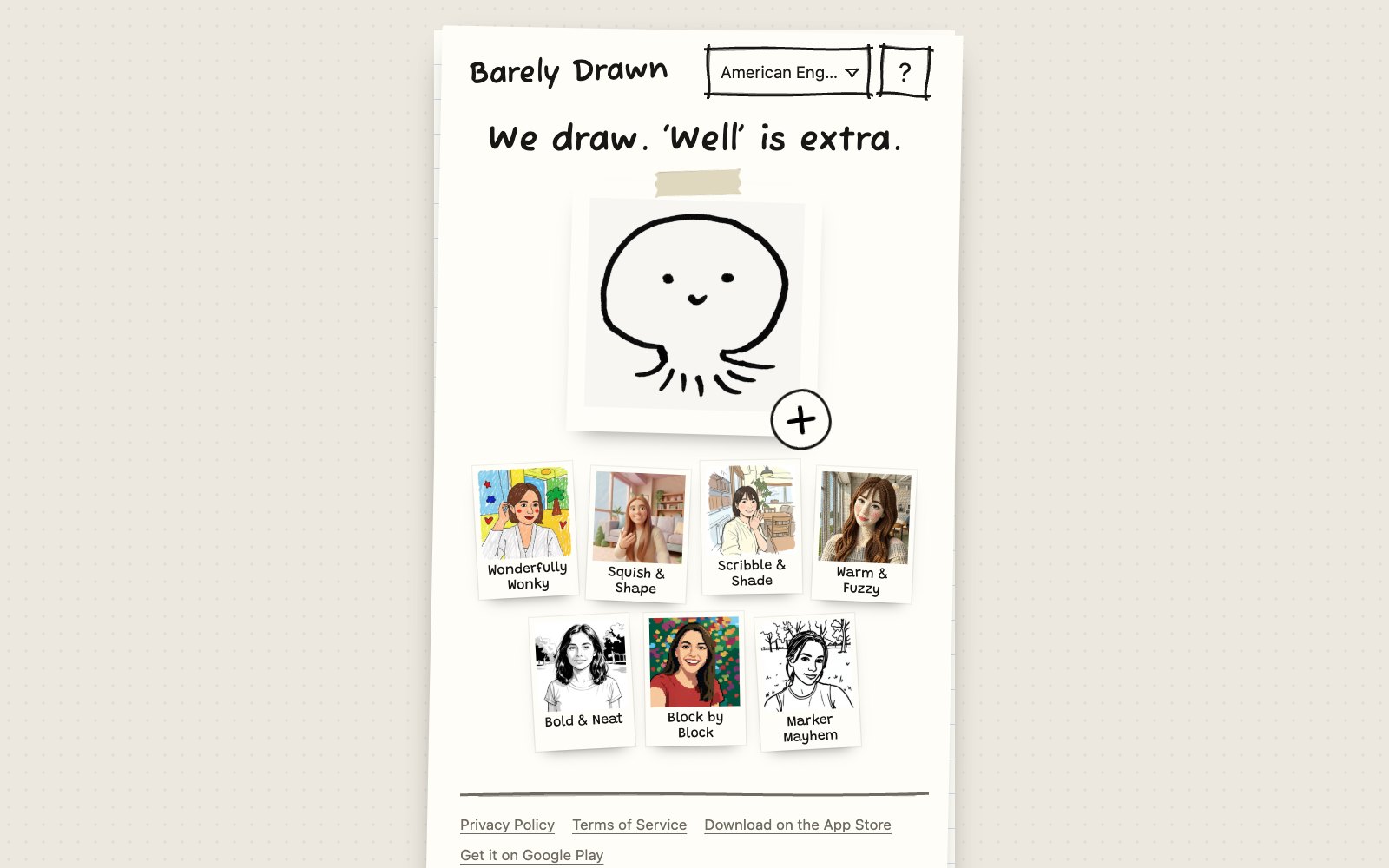
Update, November 2026. The browser version never opened for drawing. It became an install page instead, explained in the follow-up note. Version 1.0.2 went from seven styles to twenty-four, and 1.0.3 added a “Report this drawing” button, in line with Google Play’s policy for AI-generated content. A reported drawing goes to the developer with its reason, and reported drawings are the only results the service keeps.